
Sequence Workflow Actions
Enroll and unenroll contacts in sales sequences directly from your HubSpot workflows. No Sales Hub Enterprise required.
- Two workflow actions: Enroll Contact in Sequence and Unenroll Contact from Sequence
- Sequence and sender dropdowns sourced live from your portal
At a glance
Adds two workflow actions to HubSpot. Pick a sender and a sequence, and enroll contacts at scale, or unenroll them when the workflow says so.
- Works without Sales Hub Enterprise
- Sender mailbox picker (uses your existing user accounts)
- Unenrollment via workflow (a HubSpot first)
- OAuth, scoped permissions, no third-party services
What this app does
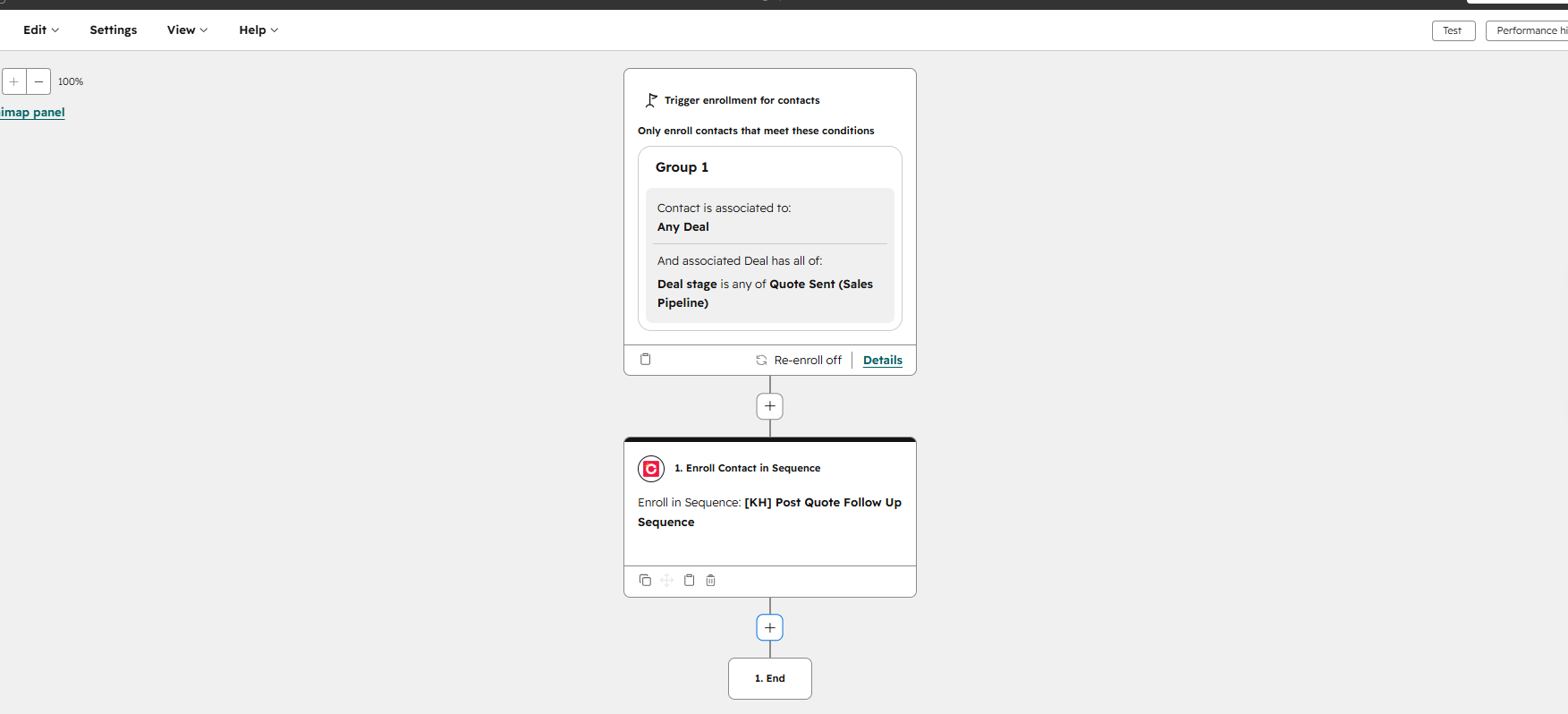
HubSpot sequences are powerful, but enrolling contacts in bulk or unenrolling them automatically based on a trigger has never been possible out of the box. Sequence Workflow Actions closes that gap with two workflow actions you can drop into any contact-based workflow.
Automate sequence enrollment
Enroll contacts in any sequence directly from a workflow, no manual one-by-one enrollment, no Sales Hub Enterprise required.
Unenroll contacts automatically
Stop a sequence the moment a contact replies, books a meeting, becomes a customer, or hits any other trigger you define.
Works on Sales Hub Professional
This works with Sales Hub Professional or Service Hub Professional. HubSpot's native feature is gated to Sales Hub Enterprise only.
Output fields for downstream logic
Every action returns success, enrollment_id (or was_enrolled), and error_message. Use them in If/then branches or to update contact properties.
Features
Two purpose-built workflow actions for HubSpot sequences, flexible enough for simple automations and robust enough for complex sales workflows.
Enroll Contact in Sequence
Pick a sequence and sender from dropdowns. The action enrolls the contact on behalf of the selected sender using the HubSpot Sequences API.
Unenroll Contact from Sequence
Automatically unenrolls the contact from their current sequence. HubSpot has no direct unenroll API, the app uses a native HubSpot behaviour behind the scenes so your workflow step just works.
Sender picker included
Choose which HubSpot user sends the sequence on behalf of your team. The enrollment uses their mailbox, sender identity, and existing sequence templates.
No third-party services
The app calls HubSpot APIs only. No data leaves your portal through any external service. King Henry's backend acts as a stateless proxy; nothing is stored after a request completes.
Action fields
Enroll Contact in Sequence
Sequence (required) — Dropdown of all sequences in your portal. Populated when a sender is selected.
Sender (required) — Dropdown of HubSpot users/owners. The enrollment is made on behalf of this user using their mailbox and sender identity.
Outputs: success, enrollment_id, error_message.
Unenroll Contact from Sequence
No inputs required. The action identifies the contact's active sequence automatically and triggers unenrollment.
Outputs: success, was_enrolled, error_message.
Output Fields
After each action runs, these outputs are available in later workflow steps:
- success:
trueif the action completed without error, otherwisefalse. - enrollment_id (Enroll only): The HubSpot enrollment ID created for this contact.
- was_enrolled (Unenroll only):
trueif the contact was enrolled in a sequence and has now been unenrolled. - error_message: Error detail when the action fails. Empty on success.
Example: Branch on success
Add an If/then branch after the action and check whether success is equal to true.
Example: Track enrollment ID
Use a Set property value action to save enrollment_id to a HubSpot contact property for later reference or reporting.
Setup Docs
Everything you need to install the app, add enrollment and unenrollment actions to your workflows, use output fields in downstream steps, and disconnect or uninstall the app when required.
Install the app
The app is installed via HubSpot's standard OAuth flow. No developer credentials or API keys on your side are required.
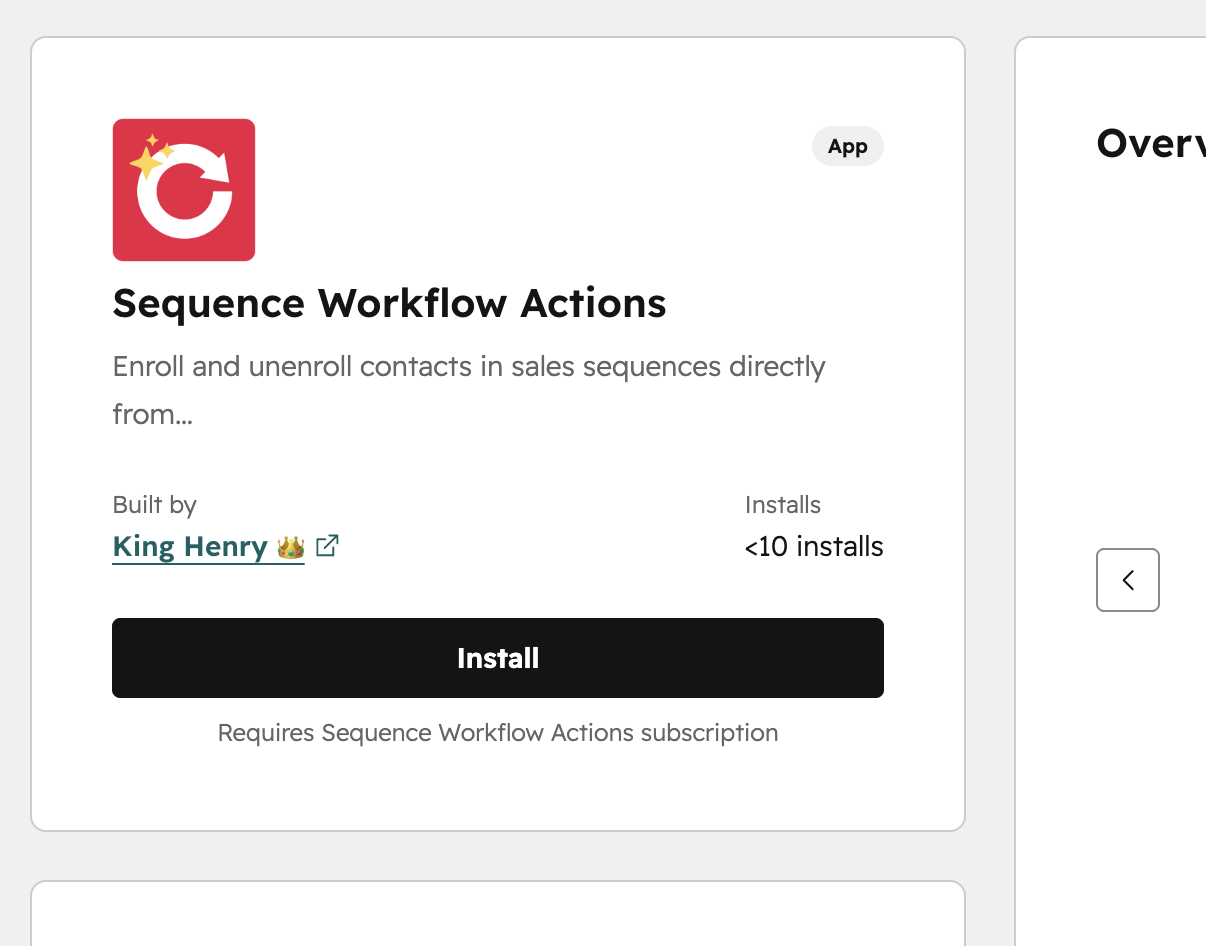
- Go to the HubSpot App Marketplace and search for Sequence Workflow Actions.
- Click Install on the listing page.
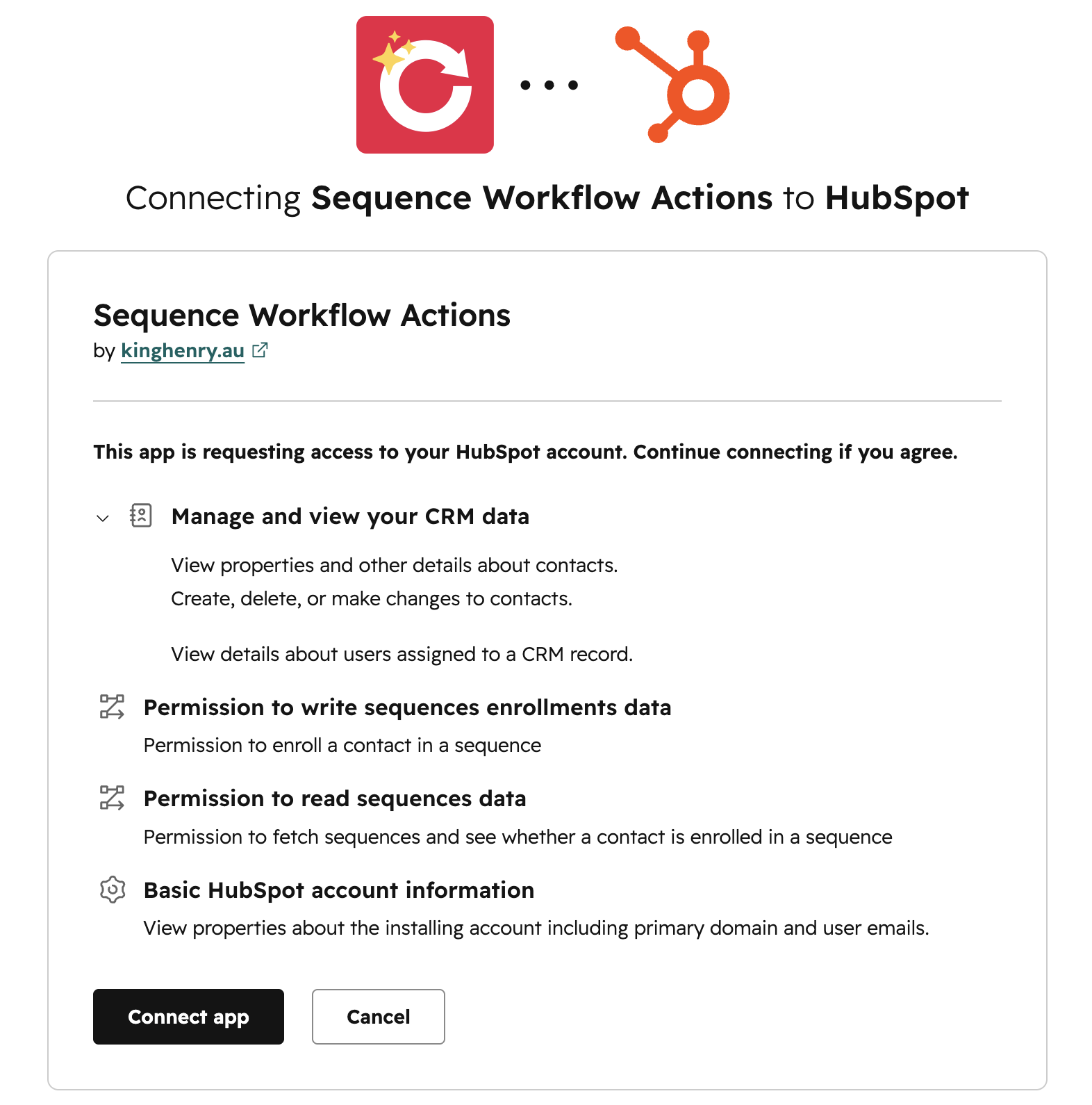
- You will be redirected to the King Henry authorisation page.
- Review the requested permissions and click Connect app.
- HubSpot will ask you to approve the scopes the app requires. Click Connect app on the HubSpot scope approval screen to grant access.
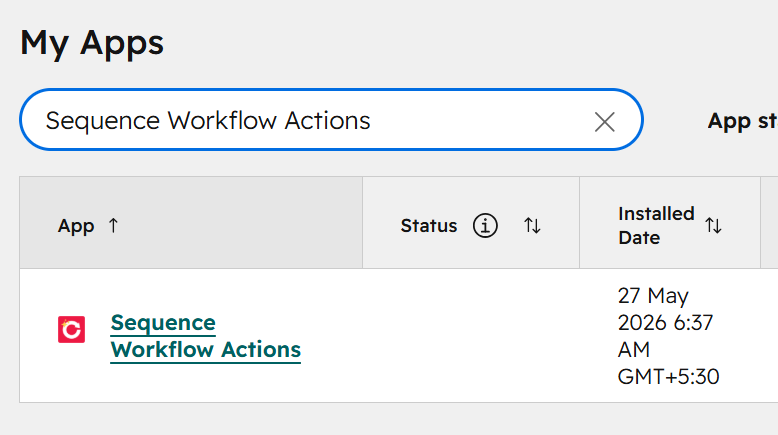
- After approving, you are redirected back to HubSpot. The app will appear in Settings → Integrations → Connected Apps.
Connect your HubSpot account
The OAuth authorisation step above connects your HubSpot account. No additional connection steps are needed after install — the app is immediately ready for use in contact-based workflows.
The app requests the minimum scopes needed: automation.sequences.read, automation.sequences.enrollments.write, crm.objects.contacts.read, crm.objects.contacts.write, and crm.objects.owners.read.
Add the action to a workflow
Once installed, both sequence actions are available in every contact-based workflow.
- Go to Automation → Workflows and open an existing contact-based workflow, or create a new one.
- Click the + button to add a new action at the desired position.
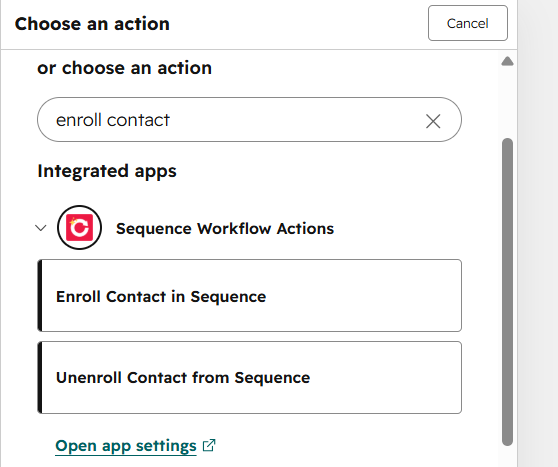
- In the action panel, type Enroll in Sequence or Unenroll from Sequence in the search box — or scroll to the Connected apps section.
- Click the action you want to open the configuration panel.
Configure the action fields
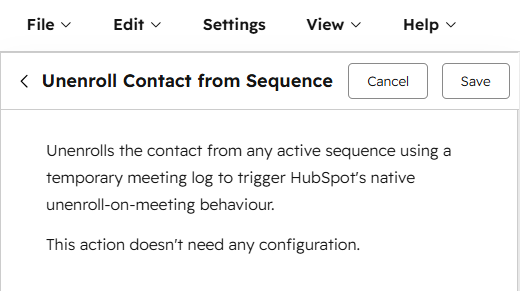
Enroll Contact in Sequence
Sequence (required) — A dropdown of all sequences in your portal. Populate the Sender field first — the sequence list filters to sequences the sender has access to.
Sender (required) — A dropdown of HubSpot users/owners. The enrollment is created on behalf of this user. They must have access to the selected sequence and a connected sending mailbox.
Unenroll Contact from Sequence
No configuration fields are required. The action automatically identifies the contact's active sequence enrollment and triggers unenrollment.
hs_sequences_is_enrolled property to flip false, then deletes the temporary meeting. The whole process completes within a single workflow action step (~10 seconds).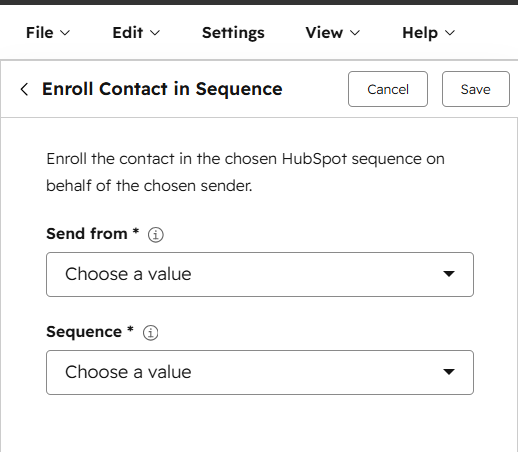
Use output fields in subsequent steps
After each action runs, output fields are available to reference in downstream workflow steps such as If/then branches or Set property value actions.
| Output field | Type | Description |
|---|---|---|
success |
Boolean | true if the action completed without error. |
enrollment_id |
String | Enroll action only. The HubSpot enrollment ID created for this contact. |
was_enrolled |
Boolean | Unenroll action only. true if the contact was enrolled in a sequence and has now been unenrolled. |
error_message |
String | A description of the error if the action failed. Empty on success. |
Example: Branch on success or failure
Add an If/then branch immediately after the action. Set the condition to Enroll Contact in Sequence, success is equal to true to route contacts differently depending on whether enrollment succeeded.
Example: Save the enrollment ID to a property
Add a Set property value action after enrollment. Use the enrollment_id output token as the value to store the enrollment ID in a HubSpot contact property.
Disconnect the app
Disconnecting revokes the OAuth authorisation token between your HubSpot portal and King Henry. After disconnecting, any workflow that runs a Sequence Workflow Actions step will fail because the action can no longer be executed.
To disconnect:
- Go to Settings → Integrations → Connected Apps.
- Find Sequence Workflow Actions in the list.
- Click Actions → Disconnect (or Uninstall, depending on your HubSpot version).
- Confirm the disconnection in the dialog that appears.
What happens to your data: Disconnecting does not delete any HubSpot properties, workflow configurations, or enrollment history. No data stored in HubSpot is removed. King Henry does not retain any of your HubSpot data after disconnection.
Uninstall the app
Uninstalling fully removes the app from your HubSpot portal, including the OAuth connection and the registered workflow action types.
To uninstall:
- Go to Settings → Integrations → Connected Apps.
- Find Sequence Workflow Actions in the list.
- Click Actions → Uninstall.
- Read the confirmation message and click Uninstall to confirm.
What happens to your data after uninstall:
- No HubSpot contacts, companies, deals, or other records are deleted.
- No HubSpot properties are deleted.
- Existing workflow steps that referenced the sequence actions remain in the workflow editor but are marked as inactive.
- Workflow enrollment history is preserved and still visible in HubSpot.
- King Henry does not store any of your HubSpot data, so there is nothing on King Henry's side to delete.
You can reinstall the app at any time from the HubSpot App Marketplace. After reinstalling, existing workflow steps that referenced the actions will become active again without reconfiguration.
Troubleshooting
Most issues come down to the sender not having sequence access, the contact already being enrolled in another sequence, or the portal not being on Sales Hub Professional.
The action shows an error in workflow history
-
Check the
error_messageoutput field in the workflow enrollment history for the failing contact. -
Confirm the sender has access to the selected sequence (typically the user who created it or an admin).
-
Check that the contact is not already enrolled in another sequence — HubSpot only allows one active enrollment at a time.
- Confirm your portal is on Sales Hub Professional, Service Hub Professional or higher.
The sequence dropdown is empty
- Select a sender first — the sequence list depends on the sender field being populated.
- Confirm the selected sender has at least one sequence available to them.
- Confirm your portal is on Sales Hub Professional, Service Hub Professional or higher (sequences are gated to these 2 hubs.
A temporary meeting appeared on the contact
-
This is expected during the unenroll action. The meeting is part of the unenrollment mechanism and is automatically deleted within approximately 10 seconds.
-
If the meeting persists beyond 30 seconds, contact support at support@kinghenry.au.
was_enrolled = false but the contact is still enrolled
HubSpot contact properties can have a short sync delay. Wait a minute and re-check the contact record. If the contact still appears enrolled, check the error_message output field and contact support if the issue persists.
I cannot find the action in the workflow editor
Check that the app is installed in Settings → Integrations → Connected Apps.
The actions are only available in contact-based workflows. They will not appear in deal, company, or ticket workflows.
- If the app appears disconnected, reinstall it from the app listing.
Support
We aim to respond within 1 business day. Please include your portal ID, workflow name, and the error_message output from the failing action step.
Need help?
Need help with Sequence Workflow Actions? Email support@kinghenry.au.
When contacting support, include:
Your HubSpot portal ID
The workflow name and the action step that is failing
The
error_messageoutput from the workflow action historyA short description of what you expected to happen
Who this is for
This app is ideal for HubSpot users who want to automate sequence enrollment and unenrollment without manual intervention or Sales Hub Enterprise.
- Sales teams on Sales Hub Professional
- Service teams on Service Hub Professional
- RevOps and operations teams
- Marketers running automated outreach sequences
- Agencies managing HubSpot portals for clients