
HubSpot Custom API Workflow Action
Send HTTP requests to any API directly from your HubSpot workflows, with support for bearer token, API key, basic auth, custom headers, query params, and dynamic request bodies.
- 5 x HTTP methods supported: GET, POST, PUT, PATCH, DELETE
- 4 x Output fields available in downstream workflow steps
At a glance
Add a Custom API Call action to any HubSpot workflow, send a request to an external endpoint, and use the response inside later workflow steps.
- No middleware required
- Authentication configured per action
- Supports HubSpot tokens in URLs and payloads
- Built for RevOps teams, developers, and agencies
What this app does
HubSpot workflows are powerful, but they stop at your HubSpot data. This app extends them with a configurable HTTP request step so you can connect HubSpot to external APIs, internal services, webhooks, CRMs, ERPs, and data platforms.
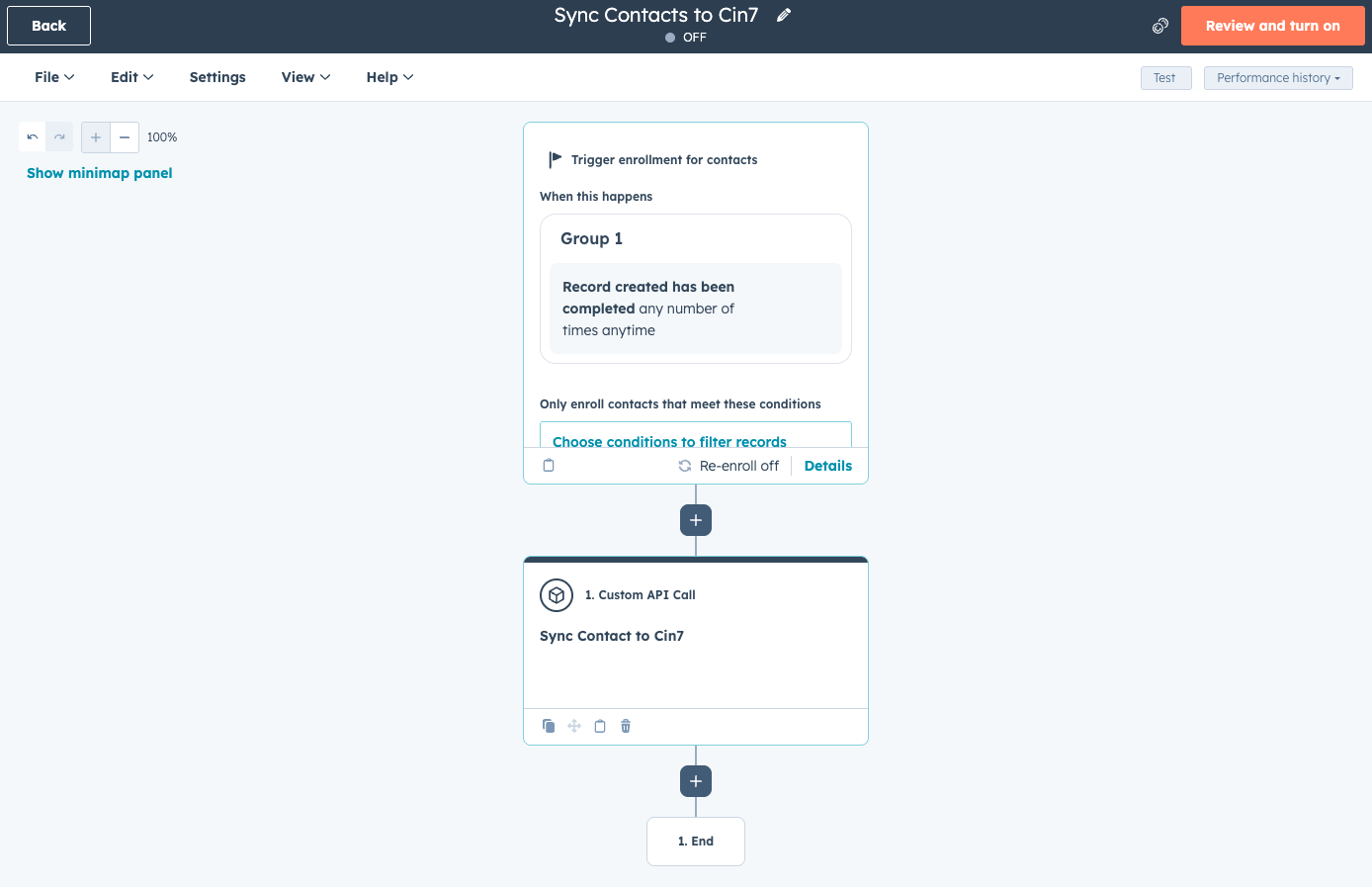
Trigger external systems
Notify other tools when a deal closes, a contact is created, or a form is submitted.
Run webhook-based automations
Send requests to Zapier, Make, serverless functions, or even your own backend. You'll never feel limited again.
Push data anywhere
Send contact, company, or deal data to another CRM, ERP, warehouse, or internal API.
Respond to outcomes
Branch the workflow on success or failure, store response data, or chain calls together.
Features
The Custom API Call action is designed to be flexible enough for common workflow automation and serious integration use cases alike.
All standard HTTP methods
Supports GET, POST, PUT, PATCH, and DELETE.
Flexible authentication
- None, for open or IP-whitelisted endpoints
- Bearer token, for OAuth or JWT-based APIs
- API key header, for custom headers like X-Api-Key
- Basic auth, for username and password auth
Dynamic request construction
Use HubSpot workflow tokens in the API URL, headers, query parameters, and JSON request body to pass live record data at runtime.
Respond to outcomes
Every request returns status_code, response_body, success, and error_message for use in later workflow actions.
Action fields
Step name (required)
An internal label for the workflow canvas, such as Notify Slack or Create lead in CRM.
API URL (required)
The full HTTPS endpoint to call. You can use HubSpot tokens, for example https://api.example.com/contacts/.
HTTP Method (required)
Choose from GET, POST, PUT, PATCH, or DELETE.
Authentication type (required)
Choose None, Bearer token, API key header, or Basic auth. The relevant credentials fields appear based on your selection.
Query parameters (optional)
Provide a JSON object of key-value pairs to append to the URL.
{
  "format": "json",
  "source": "hubspot"
}
Custom headers (optional)
Provide a JSON object of additional headers to include in the request.
{
  "X-Custom-Header": "my-value",
  "Content-Type": "application/json"
}
Request body (optional)
Used for POST, PUT, and PATCH requests. HubSpot workflow tokens can be inserted directly into the JSON.
{
  "email": "",
  "dealName": "{{deal.dealname}}",
  "stage": "{{deal.dealstage}}"
}
Timeout (optional)
Defaults to 10 seconds, with a maximum of 60 seconds.
Output Fields
After the action runs, these outputs are available in later workflow steps:
- status_code: The HTTP status code, such as
200,404, or500. - response_body: The full response body as a string.
- success:
truefor 2xx responses, otherwisefalse. - error_message: Error detail for timeouts, network issues, or failed responses.
Example: Branch on success
Add an If/then branch after the action and check whether success is equal to true.
Example: Store the response
Use a Set property value action to save response_body to a HubSpot property for later reference.
Test the app quickly
Create a contact-based workflow, add the action, and use this configuration:
Step name: Test
API URL: https://httpbin.org/get
HTTP Method: GET
Auth type: None
Then run the workflow and confirm status_code is 200, success is true, and response_body contains JSON from httpbin.org.
Setup Docs
Below contains extensive documentation on all stages of installing, using and even uninstalling this app. This will detail how to install the app, add the action to a workflow, configure the request, use the response in later steps and how to cease using the app if you require.
Install the app
The app is installed via HubSpot's standard OAuth flow. No developer credentials or API keys on your side are required — authentication to your external APIs is configured per workflow step, not at install time.
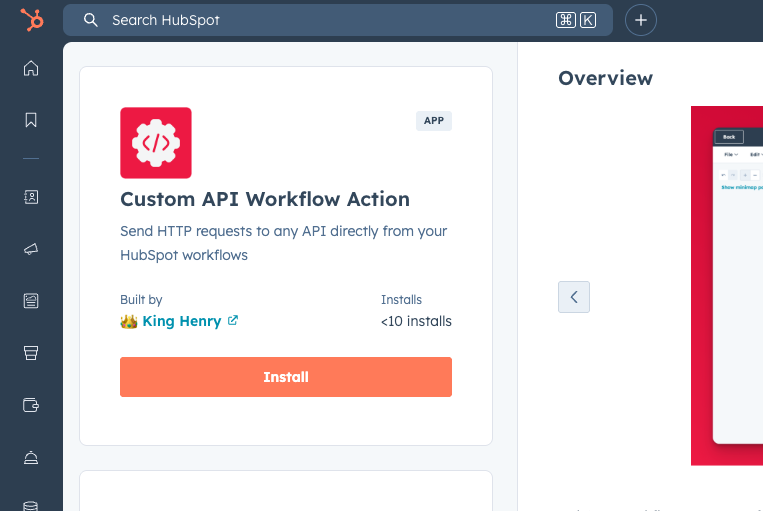
- Go to the HubSpot App Marketplace and search for Custom API Workflow Action.
- Click Install app on the listing page.
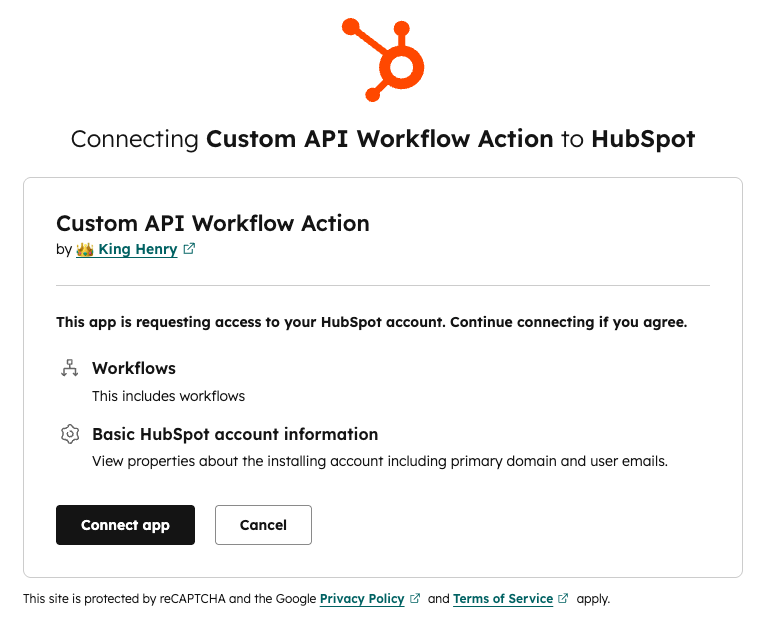
- You will be redirected to the King Henry authorisation page.
- Review the requested permissions and click Connect app.
- HubSpot will ask you to approve the scopes the app requires. Click Connect app on the HubSpot scope approval screen to grant access.
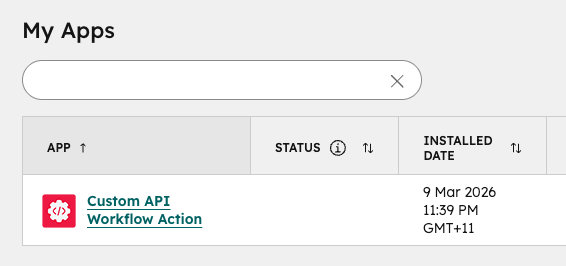
- After approving, you are redirected back to HubSpot. The app will appear in Settings → Integrations → Connected Apps.
Connect your HubSpot account
The OAuth authorisation step above connects your HubSpot account. No additional connection steps are needed after install — the app is immediately ready for use in workflows.
The app requests the automation scope only. This scope allows the app to register and execute workflow actions on your behalf. It does not grant access to your contacts, deals, or any other HubSpot data objects.
Add the action to a workflow
Once installed, the Custom API Call action is available in every workflow, regardless of enrolled object type (contacts, companies, deals, tickets, custom objects).
- Go to Automation → Workflows and open an existing workflow, or create a new one.
- Click the + button to add a new action at the desired position in the workflow.
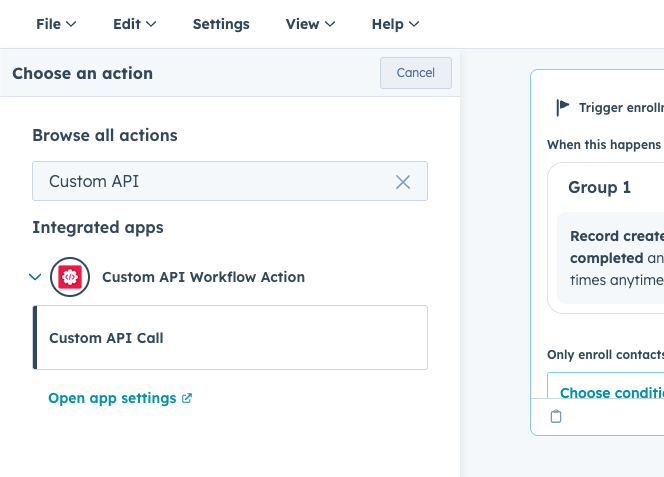
- In the action panel that opens, type Custom API in the search box — or scroll down to the Connected apps section.
- Click Custom API Call to open the configuration panel.
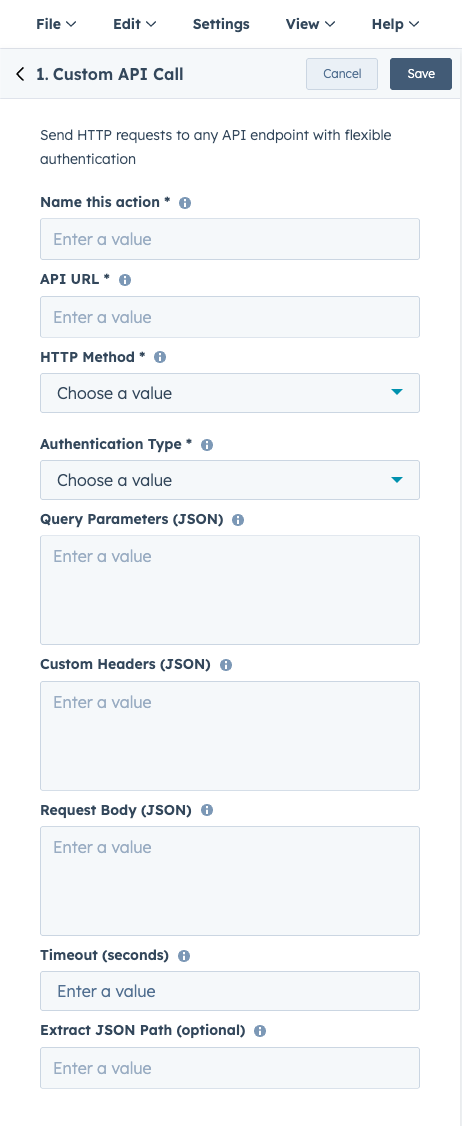
Configure the action fields
Step name (required)
A label shown on the workflow canvas to identify this action. Use something descriptive, for example Notify Slack or Create lead in CRM. This name is displayed on the workflow card and in the enrolment history, making it easy to identify each step at a glance. It is not sent to the external API.
API URL (required)
The full HTTPS URL of the endpoint to call. The URL must begin with https://. You can embed HubSpot workflow tokens to build a dynamic URL at runtime:
https://api.example.com/contacts/HTTP Method (required)
The HTTP method for the request. Choose one of:
- GET: retrieve data; no request body is sent
- POST: create a resource or trigger an action
- PUT: replace an existing resource
- PATCH: partially update an existing resource
- DELETE: remove a resource
Authentication type (required)
Controls how the request is authenticated. Selecting a type reveals the relevant credential fields:
| Option | What it does | Extra fields shown |
|---|---|---|
| None | No authentication header is added | None |
| Bearer token | Adds Authorization: Bearer <token> |
Bearer token |
| API key (header) | Adds a custom header with your key | Header name, Header value |
| Basic auth | Adds HTTP Basic authentication | Username, Password |
Query parameters (optional)
A JSON object of key-value pairs appended to the URL as query string parameters. Example:
{
  "format": "json",
  "source": "hubspot"
}
Custom headers (optional)
A JSON object of additional HTTP headers to include in the request. Example:
{
  "X-Custom-Header": "my-value",
  "Content-Type": "application/json"
}
Request body (optional)
A JSON object sent as the request body. Used for POST, PUT, and PATCH requests. Embed HubSpot workflow tokens to include live record data at the time the workflow runs. Example:
{
  "email": "",
  "dealName": "{{deal.dealname}}",
  "stage": "{{deal.dealstage}}"
}
Timeout (optional)
The maximum number of seconds the action will wait for a response before failing. Defaults to 10 seconds. Maximum allowed value is 60 seconds. If the API does not respond within this time, the workflow step is marked as failed and the error_message output field will contain a timeout description.
Use output fields in subsequent steps
After the Custom API Call action runs, four output fields are available to reference in downstream workflow steps, such as If/then branches, Set property value actions, or additional API calls.
| Output field | Type | Description |
|---|---|---|
status_code |
Number | The HTTP status code returned by the API, for example 200, 201, 400, 404, 500 |
response_body |
String | The full response body as a string. If the API returns JSON, this is the raw JSON string. |
success |
Boolean | true if the status code was in the 2xx range; false otherwise. |
error_message |
String | A description of the error if the request failed. Empty on success. |
Example: Branch on success or failure
Add an If/then branch immediately after the Custom API Call step. Set the condition to Custom API Call, success is equal to true to route enrolled records differently depending on whether the API call succeeded.
Example: Save the API response to a property
Add a Set property value action after the API call. Use the response_body output token as the value to store the API's response in a HubSpot contact or deal property for later reference or reporting.
Disconnect the app
Disconnecting the app revokes the OAuth authorisation token between your HubSpot portal and King Henry. After disconnecting, any workflow that runs a Custom API Call step will fail because the action can no longer be executed.
To disconnect:
- Go to Settings → Integrations → Connected Apps.
- Find Custom API Workflow Action in the list.
- Click Actions → Disconnect (or Uninstall, depending on your HubSpot version).
- Confirm the disconnection in the dialog that appears.
What happens to your data: Disconnecting does not delete any HubSpot properties, workflow configurations, or enrolment history. No data stored in HubSpot is removed. King Henry does not retain any of your HubSpot data after disconnection. The app proxies API requests in real time and stores nothing.
Uninstall the app
Uninstalling fully removes the app from your HubSpot portal, including the OAuth connection and the registered workflow action type.
To uninstall:
- Go to Settings → Integrations → Connected Apps.
- Find Custom API Workflow Action in the list.
- Click Actions → Uninstall.
- Read the confirmation message and click Uninstall to confirm.
What happens to your data after uninstall:
- No HubSpot contacts, companies, deals, or other records are deleted.
- No HubSpot properties are deleted.
- Existing workflow steps that referenced the Custom API Call action remain in the workflow editor but are marked as inactive.
- Workflow enrolment history is preserved and still visible in HubSpot.
- King Henry does not store any of your HubSpot data, so there is nothing on King Henry’s side to delete.
You can reinstall the app at any time from the HubSpot App Marketplace. After reinstalling, existing workflow steps that referenced the action will become active again without reconfiguration.
Troubleshooting
Most issues come down to the endpoint URL, credentials, token syntax, or API response time.
The action shows an error in workflow history
-
Check the error_message output field.
-
Confirm the API URL is correct and uses https://.
-
Verify your token, API key, or username and password are still valid.
- Make sure the endpoint is publicly accessible from the internet.
My request body tokens are not resolving
- Use the correct HubSpot token format, such as .
- Only properties on the workflow's enrolment object are available.
The request times out
-
The maximum timeout is 60 seconds.
-
Increase the timeout value if appropriate.
-
If the API consistently takes longer, it is not a good fit for this action.
The app was uninstalled but workflows still reference it
Every request returns status_code, response_body, success, and error_message for use in later workflow actions.
I cannot find the action in the workflow editor
-
Check that the app is installed in Settings → Integrations → Connected Apps.
- If it appears disconnected, reinstall it from the app listing.
Support
Most issues come down to the endpoint URL, credentials, token syntax, or API response time.
Need help?
Need help with the Custom API Workflow Action? Email support@kinghenry.au.
When contacting support, include:
-
Your HubSpot portal ID
-
The workflow name and step name of the failing action
-
The error message or status code from the workflow action history
-
A short description of what you expected to happen
Who this is for
This app is ideal for HubSpot users who want to connect workflows to external systems without building a full custom integration.
- RevOps teams
- Developers
- Agencies
- Operations teams